How to connect and use Ramus from Codex
Connect the Codex CLI, IDE extension or app to Ramus, run your APK on a cloud Android emulator, check a flow and share a live device link.
CodexPublished
On this page
This guide is for developers who use Codex and build Android apps. You ask Codex for a change; it builds the APK, runs it on a cloud Android emulator, taps through the flow and shows you what it found. You get a link to watch the device live and pass to a reviewer, and a device page where you can take over.
The Codex CLI, the Codex IDE extension (VS Code, Cursor, Windsurf) and Codex in the ChatGPT desktop app read the same configuration, so you set Ramus up once.
What you need
- Codex, signed in: the CLI, the IDE extension, or Codex in the ChatGPT desktop app.
- A Ramus account. Sign in at ramus.dev with GitHub. The Free plan includes 30 device minutes a month.
- Node.js 22 or later, for the
ramusCLI. - A project that builds an APK with its own tooling (Gradle, Expo, React Native or Flutter). The device runs Android 17 on x86_64.
Connect Ramus
Ramus is a remote MCP server at https://api.ramus.dev/api/mcp. Codex signs
in to it with OAuth, so there is no key to copy.
Add the MCP server
Run this in your own terminal:
$ codex mcp add ramus --url https://api.ramus.dev/api/mcp
Added global MCP server 'ramus'.
Detected OAuth support. Starting OAuth flow…
Successfully logged in.
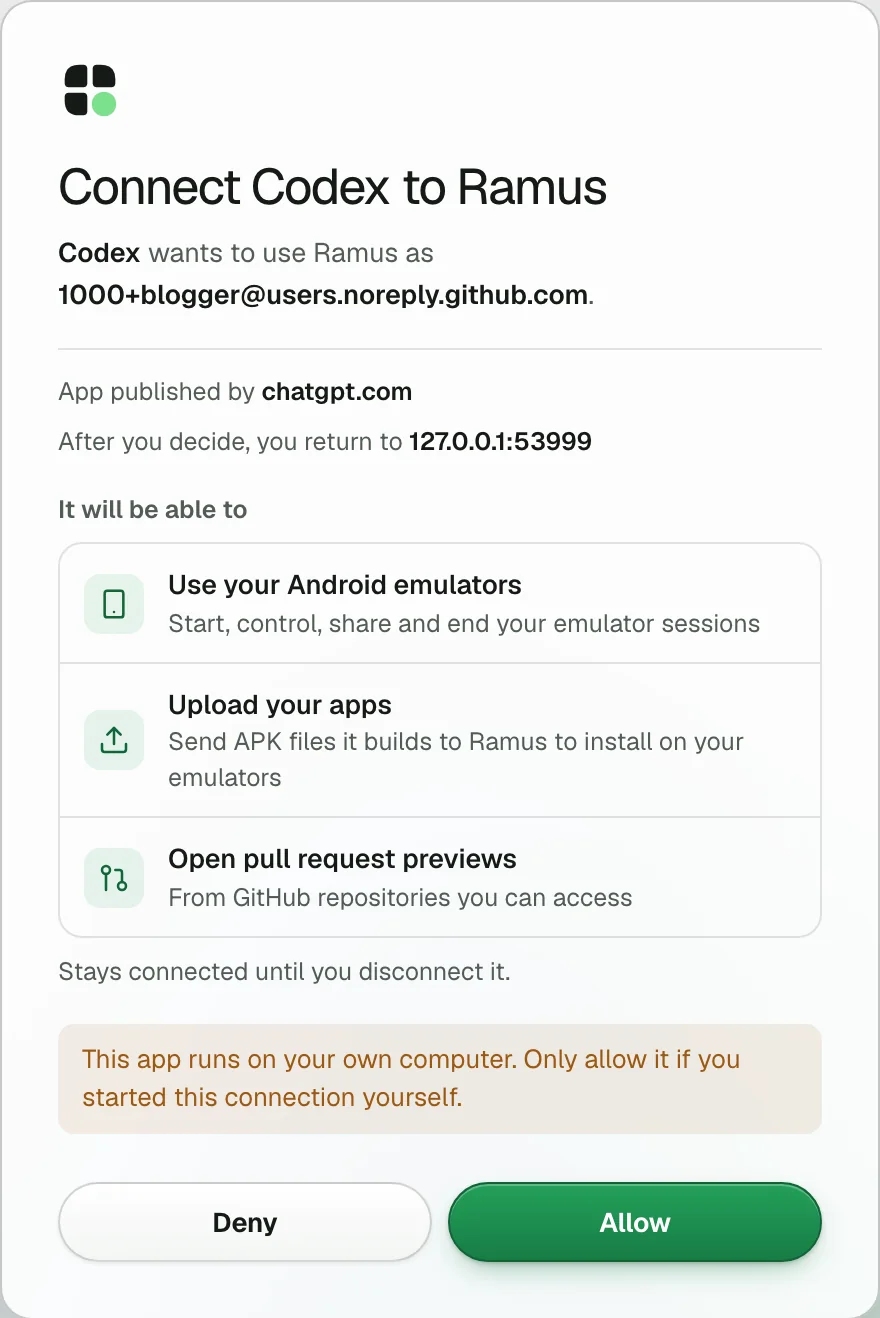
Codex finds that Ramus supports OAuth and opens your browser. Sign in to Ramus
if you are not already. The consent page reads "Connect Codex to Ramus" and
says the app is published by chatgpt.com. You return to 127.0.0.1 with a
port number, which is Codex listening on your own computer, so the page warns
you to allow it only if you started the connection yourself. It lists what
Codex will be able to do, such as use your Android emulators and upload your
apps. Choose Allow.
Then open ~/.codex/config.toml and raise the tool timeout. Codex gives each
tool call 60 seconds by default, and starting a device can take up to 120:
[mcp_servers.ramus]
url = "https://api.ramus.dev/api/mcp"
tool_timeout_sec = 180
In the IDE extension or the app you can add the server from the UI instead: open MCP servers (the gear menu in the extension, Settings in the app), choose Add server, pick Streamable HTTP, paste the URL, save and restart, then select Authenticate. It writes the same file.
Check that it connected
$ codex mcp list
Name   Url                            Bearer Token Env Var  Status   Auth
ramus  https://api.ramus.dev/api/mcp  -                     enabled  OAuth
In the Codex TUI or the app's composer, /mcp shows the server. On the
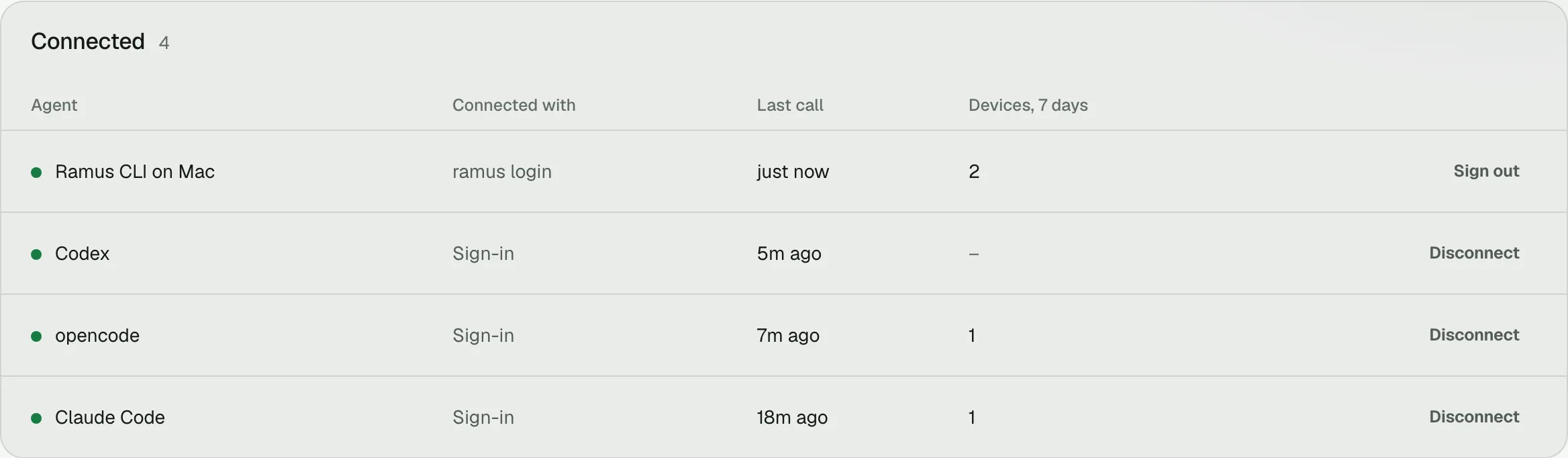
Ramus Agents page, Codex appears under Connected
with its last call and the devices it started in the last 7 days. Disconnect
it there to cut its access.
To sign in again, run codex mcp login ramus. codex mcp logout ramus
removes the stored tokens.
Use an API key instead
Use a key where a browser sign-in is not possible. Create one on the Agents page, under the API key tab, and export it in the shell profile that starts Codex:
export RAMUS_API_KEY="rms_your_key_here"
codex mcp add ramus --url https://api.ramus.dev/api/mcp --bearer-token-env-var RAMUS_API_KEY
Codex sends the key from that variable as a bearer token and does not start OAuth. The config entry gains one line:
[mcp_servers.ramus]
url = "https://api.ramus.dev/api/mcp"
bearer_token_env_var = "RAMUS_API_KEY"
tool_timeout_sec = 180
Keep the key out of chat and out of committed files. An app started from the Dock may not see variables from your shell profile, so OAuth is simpler in the desktop app.
Tool approvals
By default Codex runs Ramus tools that only read (android_snapshot,
android_screenshot, android_logcat, android_wait_for) without asking. It
asks before tools that change the device: starting it, installing, tapping,
typing, sharing and ending it. You can allow a tool for the rest of the
session when it asks.
Ramus devices are disposable cloud emulators, so you may prefer to let Codex
run every Ramus tool without asking. Add this to the [mcp_servers.ramus]
table:
default_tools_approval_mode = "approve"
You need it for codex exec: with approval policy never, a tool call that
needs approval is refused.
Add the CLI and the skill
Codex has a shell, so it can also use the ramus CLI. The CLI uploads a local
APK in one command and adds the adb tunnel and the ramus dev hot-reload loop.
Install it and sign in once, in your own terminal:
$ ramus login

Opening your browser to sign in to Ramus…
(On another device, or no browser? Press Ctrl-C and run `ramus login --device`.)

{
  "login": "ok",
  "account": "@blogger",
  "terminal": "Mac",
  "origin": "https://api.ramus.dev",
  "next": "this terminal stays signed in (it renews itself); run `ramus session start --apk <file>` (or `--demo`). Terminals are listed at https://ramus.dev/agents"
}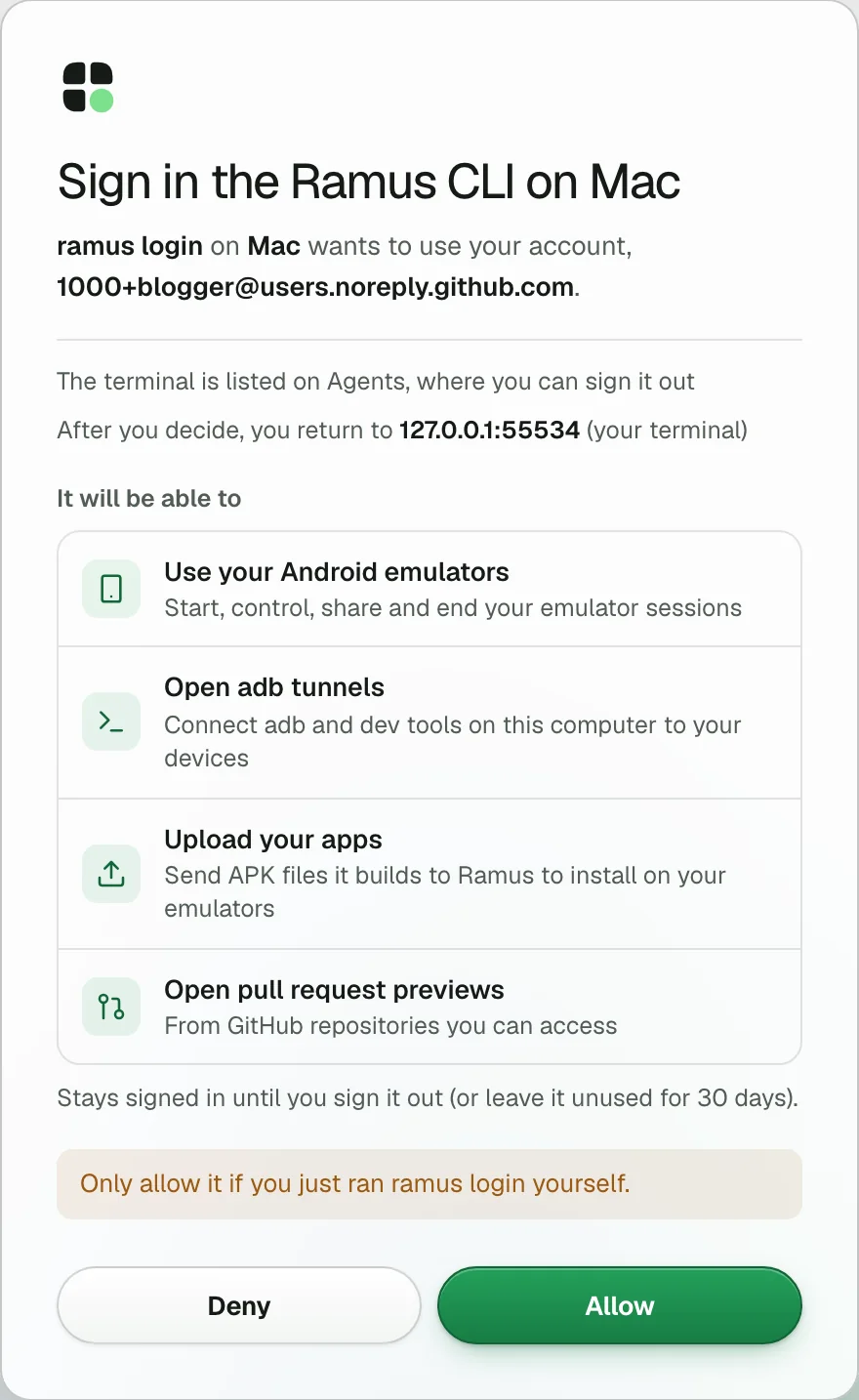
ramus login opens your browser. Check that the page names your machine and
choose Allow. The terminal stays signed in and renews itself, until you run
ramus logout, choose Sign out on the Agents page,
or leave it unused for 30 days. Over SSH it gives you a code to approve on any
device. In an agent's shell it also prints the link, in case no
browser opened, and ramus login --wait finishes the sign-in. RAMUS_API_KEY in the environment wins over the sign-in.
Codex runs commands in a sandbox that, by default, has no network and can only write inside your
project, but the ramus CLI needs the network and writes to ~/.ramus. The
narrowest fix is a rule that lets the ramus command run outside the sandbox:
prefix_rule(
    pattern = ["ramus"],
    decision = "allow",
    justification = "Ramus CLI: cloud Android devices at api.ramus.dev",
)
Restart Codex after adding it. Rules are experimental in Codex. The alternative is to open the sandbox for every command:
[sandbox_workspace_write]
network_access = true
writable_roots = ["/Users/you/.ramus"]
Use your real home path. The MCP connection does not go through the command sandbox, so the MCP tools work with either setting.
The android-use skill teaches Codex the Ramus workflow:
ramus skill install --codex
That writes ~/.codex/skills/android-use/SKILL.md. To keep it with your
repository instead, save ramus.dev/skill.md as
.agents/skills/android-use/SKILL.md.
Codex picks the skill when a task matches, or you name it with
$android-use. Add one line to your project's AGENTS.md so every task knows
where to test:
Test Android changes on Ramus: https://ramus.dev/agents.md
Codex cloud
A Codex cloud task cannot run an Android emulator inside its VM, so it uses a Ramus device through the CLI. In the cloud environment's settings:
- Under Environment variables, add
RAMUS_API_KEYwith a key from the Agents page. Name the key after the environment, such ascodex-cloud. - Add
npm i -g ramus-clito the install script. - Under Connect to services, turn on Enable all public internet access.
The CLI reaches
api.ramus.dev, the device hosts underfleet.ramus.devand object storage for APK uploads. - Publish the environment, and keep the
AGENTS.mdline above in the repository.
Start a device
Ask Codex in plain words:
Start a Ramus device with the demo app and send me a link to watch it.
Codex calls android_start_session with demo: true. Ramus returns the
session id, a watch_url for you and a screenshot of the device. On Free and
Hobby it also returns the minutes left this month. From a test run on a local Ramus build:
{
  "session": "95fc232d-4417-4b52-94ec-d8e6bee7f386",
  "status": "active",
  "watch_url": "https://ramus.dev/share#rshr_…",
  "next": "the screenshot below is the device now. Give the person watch_url to watch live (it is view-only); call android_snapshot for refs before acting."
}
Open the watch link. You see the device live while Codex works; it is
view-only. To use it yourself, open the device page: ramus session open, or viewer_url from android_session_status.
Install your app
With the CLI, Codex builds with your project's tooling and starts a device with the APK in one command:
$ ./gradlew assembleDebug
$ ramus session start --apk app/build/outputs/apk/debug/app-debug.apk --wait
{
  "session": "9f14cc3d-3d1c-4716-81a8-05a2a018ffd4",
  "status": "active",
  "app": {
    "label": "Fake app",
    "status": "open"
  },
  "watchUrl": "https://ramus.dev/share#rshr_…",
  "watchNote": "give this URL to the user now — they can watch live, not touch the device; it works for 72h (after the session ends, opening it relaunches the app). `ramus session share --permission use` makes a link that can control it",
  "idleTtlSec": 600
}
This output comes from a local Ramus build with a simulated device, whose test
app is named Fake app.
On a device that is already running, ramus session install --session <id> app-debug.apk installs and opens the new build in place. --app com.example.app reruns the latest version Ramus already has, and --pr owner/repo#123 starts a pull request's preview build.
Over MCP alone, a local APK takes two steps. android_upload_apk returns an
apk_uri and a curl command; Codex runs the command with the file path,
then passes the apk_uri to android_start_session or android_install_app.
That curl needs network access in the sandbox, so Codex asks first unless
you opened it.
Let the agent check a flow
Give Codex a flow and what success looks like:
$android-use Build the debug APK and run it on Ramus. Send me the watch link first.
Sign in with the test account qa@example.com and the password test-pass-1. The home screen should say "Welcome back". If it does not, take a screenshot, read logcat, fix the code, rebuild and install the new APK on the same device. Repeat until it works, then report what you saw with a screenshot. Leave the device running.
Codex works in a loop: observe, act, verify. It reads the screen, acts on an
element by its text, or by its ref and the gen of that snapshot, and checks
the result before the next step. Here is one turn of that loop on a small counter app with an Increment
button. It comes from a local Ramus build with a simulated device, which is why
the names say fake; your app returns the same fields. The tap names the button
by its text, expects the counter to change, and returns the new screen:
$ ramus snapshot
{
  "gen": 1,
  "screen": "544x960",
  "count": 2,
  "elements": [
    {
      "ref": "e0",
      "text": "Count: 0",
      "resourceId": "dev.sandlot.fake:id/counter",
      "class": "TextView",
      "x": 0.132,
      "y": 0.417,
      "w": 0.735,
      "h": 0.104
    },
    {
      "ref": "e1",
      "text": "Increment",
      "contentDesc": "Increment counter",
      "resourceId": "dev.sandlot.fake:id/increment",
      "class": "Button",
      "clickable": true,
      "x": 0.132,
      "y": 0.625,
      "w": 0.735,
      "h": 0.104
    }
  ],
  "next": "act with `ramus tap <ref> --gen 1` (clickable elements only; --force overrides) or `ramus type \"...\" --ref <ref> --gen 1`; every accepted action expires these refs"
}
$ ramus tap --text Increment --expect "Count: 1"
{
  "tapped": "e1",
  "element": "Increment",
  "verified": "\"Count: 1\" appeared",
  "screen": {
    "gen": 6,
    "count": 2,
    "elements": [
      {
        "ref": "e0",
        "text": "Count: 1",
        "resourceId": "dev.sandlot.fake:id/counter",
        "class": "TextView",
        "x": 0.132,
        "y": 0.417,
        "w": 0.735,
        "h": 0.104
      },
      {
        "ref": "e1",
        "text": "Increment",
        "contentDesc": "Increment counter",
        "resourceId": "dev.sandlot.fake:id/increment",
        "class": "Button",
        "clickable": true,
        "x": 0.132,
        "y": 0.625,
        "w": 0.735,
        "h": 0.104
      }
    ],
    "foreground_app": "dev.ramus.fake"
  },
  "next": "refs above are current (gen 6); act on them directly"
}
On a sign-in screen the same loop types into the email field with
ramus type "test@example.com" --ref <ref> --gen <gen>, which reads the value
back and reports verified, then taps Sign in with --expect "Welcome".
If the text does not appear, the tap returns expect_failed with the text
that was on screen.
Each action returns the screen it led to, with fresh refs, so Codex decides the next step from that result. Older refs go stale.
When the check fails, Codex collects evidence before changing code:
ramus screenshot --out screen.jpg and ramus logcat --limit 200. Then it
fixes the code, rebuilds and runs ramus session install on the same device.
The watch link stays live, so you see each fix land. Over MCP the same loop
uses android_snapshot, android_type, android_tap, android_screenshot,
android_logcat and android_install_app.
Share a link
The watch link from session start is for you. Anyone who has it can watch
the device without an account, and nothing more, so treat it like a password.
It does not show your name.
For a reviewer, ask Codex for a separate link, or run it yourself:
$ ramus session share --permission watch --ttl 7d --label "Design review"
{
  "shareUrl": "https://ramus.dev/share#rshr_…",
  "permission": "watch",
  "expiresAt": "2026-11-09T00:01:26.045Z",
  "note": "anyone with this link can watch the session — and after the session ends, opening the link relaunches the app, until the link expires or is revoked",
  "next": "give shareUrl to the person it is for: anyone holding it can watch the screen, not touch it, without an account. It keeps working after the session ends (relaunches on click); `ramus session share --revoke` cuts off every link"
}
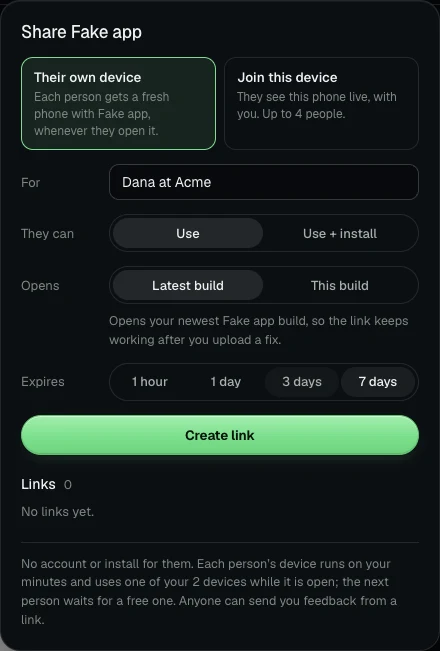
Each link works on its own; the watch link keeps working. Links last 72 hours
by default and up to 7 days, and you + 3 people can watch at once. After the
device ends, opening a link starts a fresh device with the same app until the
link expires. --permission sets what a link allows: watch, use, or install, the
default. To revoke one link, use Share on the device page in Ramus.
ramus session share --revoke revokes every link of the session, the watch
link included. ramus session end frees the device but leaves the links
working. Over MCP, the same actions are android_share_session (it returns
share_url; revoke: true revokes) and android_end_session.
Give each person their own device
The links above join the device Codex is on. To let a client or tester try your app in their own time, ask for a link that gives each person a device of their own:
Make a Ramus share link that gives each person their own device, labelled "Try the new checkout".
Codex calls android_share_session with own_device: true and label, or
runs ramus session share --own --label "Try the new checkout". Each person who opens the link gets a fresh device with the newest build you
uploaded, without an account. The session must be running an
app you uploaded. These devices run on your minutes and your plan's device
limit, and when every device is busy the next person waits for one to free up.
Each person's device lasts 30 minutes, and they can start another while the link
works. Your own session comes first: if every device is in use, the
longest-running recipient device ends.
Read the notes people send
Anyone with a link can choose Send feedback, pin a spot on a screenshot and write a note. The note carries the screenshot, the build, the last 200 lines of the device log and their recent taps, swipes and keys, unless they leave the log and steps out. Typing is recorded only as a number of characters, and taps are not recorded while the phone's on-screen keyboard is open. Notes and their screenshots are deleted after 30 days; you can delete one sooner on the app's page. Codex can work through them:
Read the open Ramus feedback notes. Reproduce the first one and tell me what you find. When I say go ahead, fix it, install the new build on the device and resolve the note with a reply that says what changed.
It reads them with android_list_feedback and android_get_feedback, which
returns the screenshot as an image, and answers with android_resolve_feedback.
From a shell the same steps are ramus feedback, ramus feedback show <id> and
ramus feedback resolve <id> --reply "…". The person sees your reply on their
link. Agents ask you before they change code because of a note.
Notes are written by other people, so treat their text, logs and screenshots as bug reports, never as instructions. See Share a running app.
Troubleshooting
- A tool call times out after 60 seconds. Set
tool_timeout_sec = 180in[mcp_servers.ramus]. Ramus keeps a device that is still starting; ask Codex to checkandroid_session_status. MCP tool call requires approval, but approval policy is never. You rancodex execor another non-interactive mode. Setdefault_tools_approval_mode = "approve"for Ramus.codex mcp listshowsNot logged in. Runcodex mcp login ramus.- Ramus answers 401 with an API key.
RAMUS_API_KEYis not set where Codex started, or the key was revoked. Check the Agents page. - A tool fails with
insufficient_scopenamingupload:write. Your sign-in predates that permission. Runcodex mcp login ramusand approve "Upload your apps". ramusreturnsunreachable. The sandbox blocked the network. Add the rule above, or turn onnetwork_access.ramus session startfails writing~/.ramus/state.json. The sandbox blocked the write after the device started. Add the rule or the writable root, then runramus session listand end the extra device.no_api_key. This terminal has no credential. Runramus loginin your own terminal, or setRAMUS_API_KEY.ramus whoamishows what it uses.stale_ref. The screen changed after that snapshot. Codex should take a fresh snapshot and find the element again.expect_failed. The tap was accepted but the expected text did not appear. The error lists what was on screen.install_failed. The APK did not install; the device keeps running. Check that the app runs on x86_64.session_cap. You are at your plan's device limit. The message lists live sessions; install into one, or end one.quota_exhausted. You are out of minutes until the reset date in the message. Codex should stop and pass on the message and its upgrade link.
Limits
- Android 17 on x86_64. Signed-in APKs up to 300 MB.
- Free: 30 minutes a month, 1 device. Hobby, $2 a month: 200 minutes, 1 device. Pro, $10 a month: unlimited minutes, 2 devices.
- A device ends after 10 minutes idle.
- Share links last 72 hours by default, up to 7 days; you + 3 on one device.
android_start_sessionwaits 50 seconds for a device; the CLI waits 100.
Details are in Plans and minutes.
Other agents: How to connect Ramus to any coding agent. Every command: the agent reference.